



How to activate and use it in Firefox
Step-by-step guide to activating the AI RTL extension in Firefox
1
Activate the extension
How to turn it on:
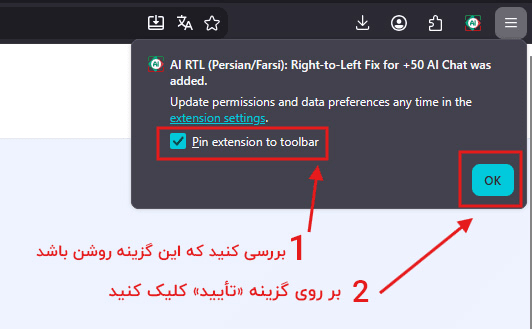
- Turn on Pin to toolbar and click OK
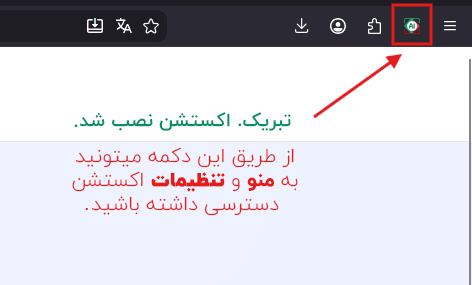
- Click the extension icon to open the menu and settings
Step 1
Turn on Pin to toolbar and click OK
Step 2
Click the extension icon to open the menu and settings
2
Use the extension
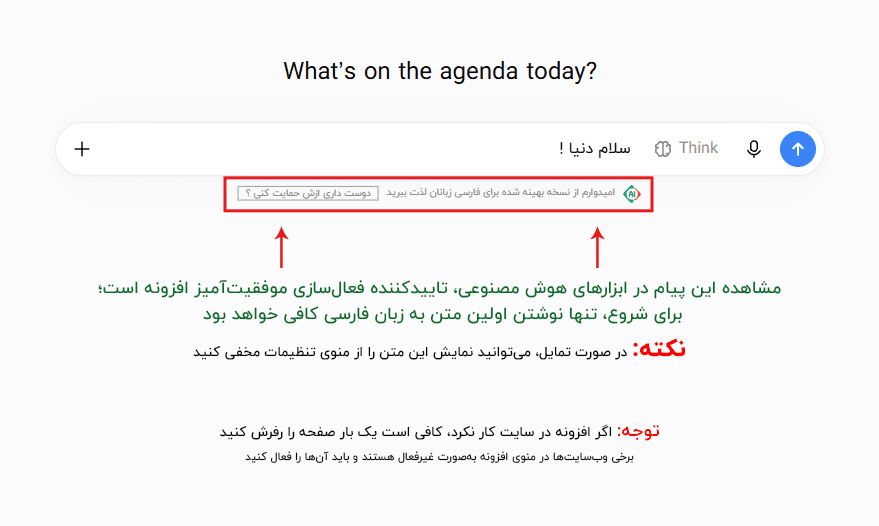
The extension works automatically. You only need to:
- Go to ChatGPT or another supported platform
- Type your Persian text
- The extension makes the text right-to-left automatically
- No extra settings are needed!
3
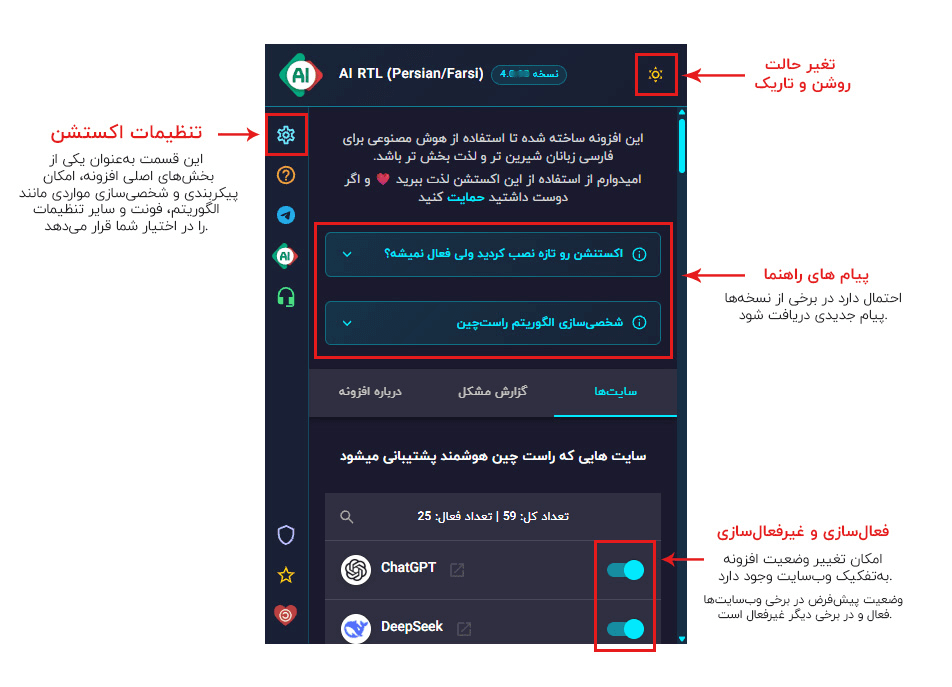
Extension menu
4
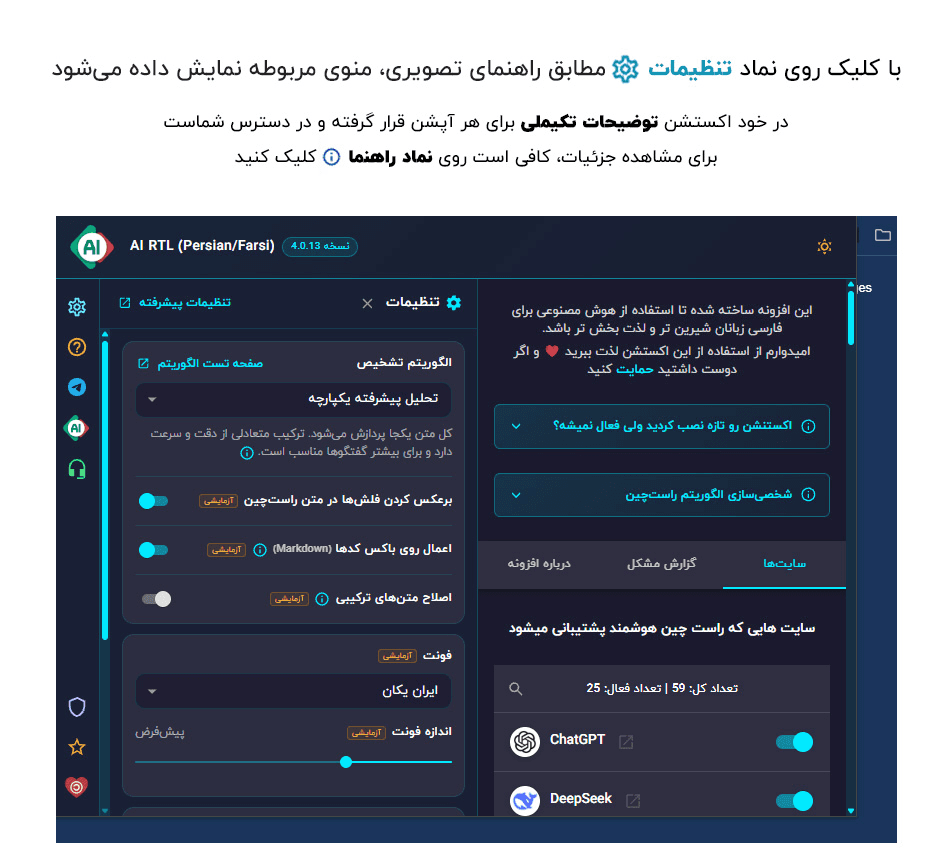
Extension settings
To open the extension settings:
- Click the AI RTL icon in the toolbar
- Click the settings icon (gear)
- Change the RTL algorithm, font, and other options from this menu
5
Fix common problems
Problem: the extension does not work
- Refresh the page (F5 or Ctrl+R)
- Make sure the extension is on
- Turn the extension off and on again
Problem: text is not right-to-left
- Refresh the page
- Change the RTL algorithm in settings
- Make sure your text is Persian
Problem: the extension does not work on a specific site
- Make sure the site is on the list of supported platforms
- Refresh the page
- If the problem continues, report it on the problem report page
Contact us
If you have a question or something goes wrong, you can reach us on Telegram.
You can also use Problem report page to find the answer to your problem